;reply;followup;byeChoose when you want to browse
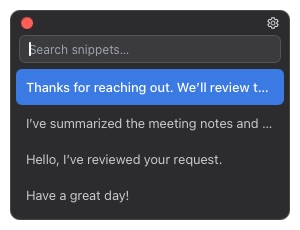
The popup is included in Free. Search all saved snippets and insert one without leaving the current app.
Help
Save a phrase once, then choose it from the popup or expand it with a short trigger.
Open Kybit and follow the permission guide shown for your operating system.
Add a title, the text you want to reuse, and an optional AutoText trigger.
Press the hotkey, type a few letters, then press Enter to insert the selected snippet.
Turn on AutoText and type a saved trigger such as ;reply in the app where you are writing.

;reply;followup;byeThe popup is included in Free. Search all saved snippets and insert one without leaving the current app.

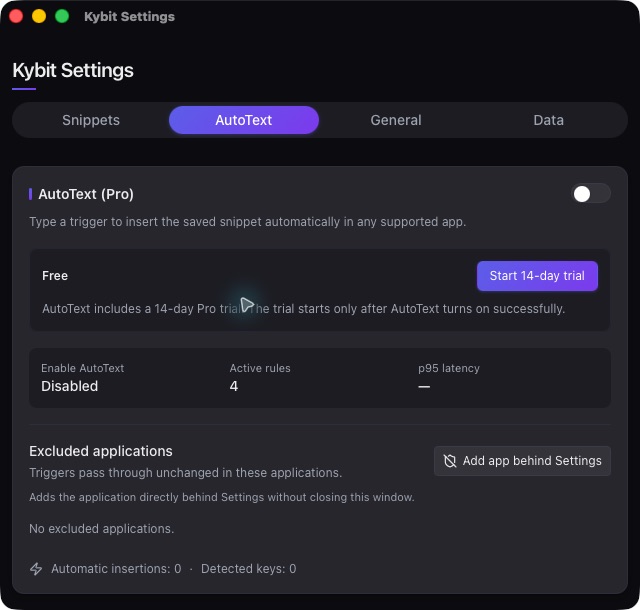
AutoText is a Pro feature. It recognizes the same physical keys across supported input languages.
Check the shortcut in Settings and confirm that Kybit has the permissions requested by your operating system.
Confirm that AutoText is on, the trigger starts with ;, : or /, and the current app is not excluded.
Open Settings → Data to select a sync folder or import and export a Kybit backup.
Free includes unlimited snippets and the popup. Pro adds system-wide AutoText and per-app exclusions.
Contact
Tell us your operating system, Kybit version, and what happened. Please do not include passwords or other sensitive information.